

Description
Download Free Screen Capturer – Free, Secure Screen Recording & Screenshot Tool for Windows, Mac, Android & iOS
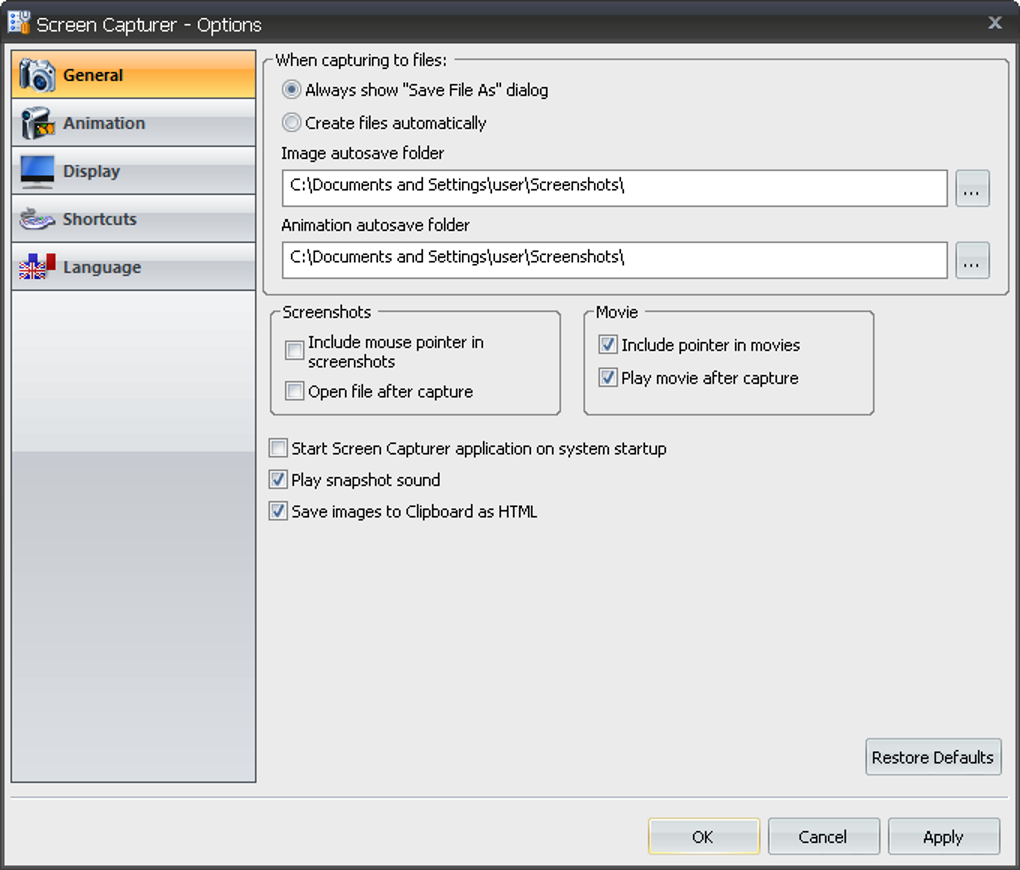
Looking for a reliable, free screen capturing tool that works seamlessly across Windows, Mac, Android, and iOS? Free Screen Capturer is your go-to solution for instant screenshots and short video recordings. Whether you're a blogger, educator, or content creator, this lightweight yet powerful software helps you capture full-screen, active window, or custom area screenshots with ease. Save images in popular formats like JPG, PNG, BMP, GIF, or TIFF—perfect for blog posts, social media, or documentation. Need to record a tutorial or share a live demo? The built-in video recording feature lets you capture screen activity in AVI or WMV format, with optional audio recording. No complex setup. No watermarks. Just fast, secure, and efficient screen capture on any device. Download Free Screen Capturer today and streamline your workflow with a tool that’s both beginner-friendly and feature-packed.
Key Features of Free Screen Capturer
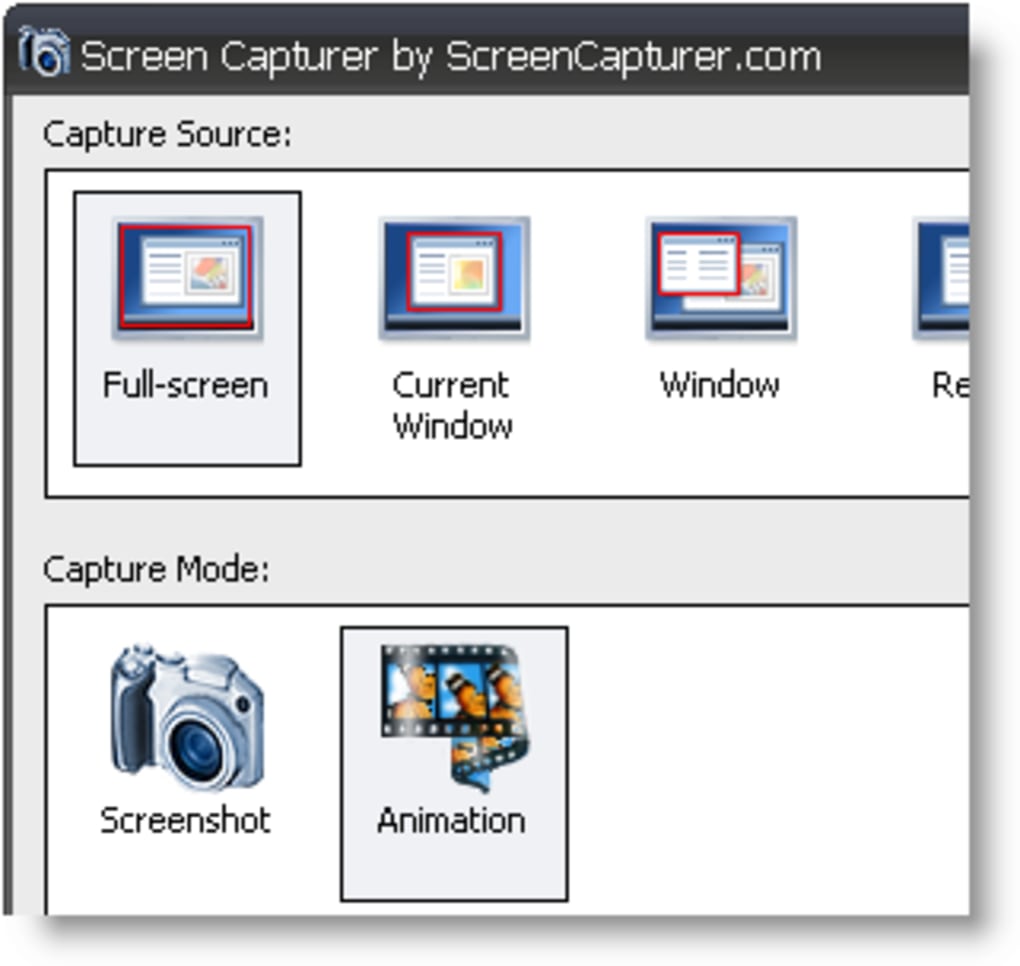
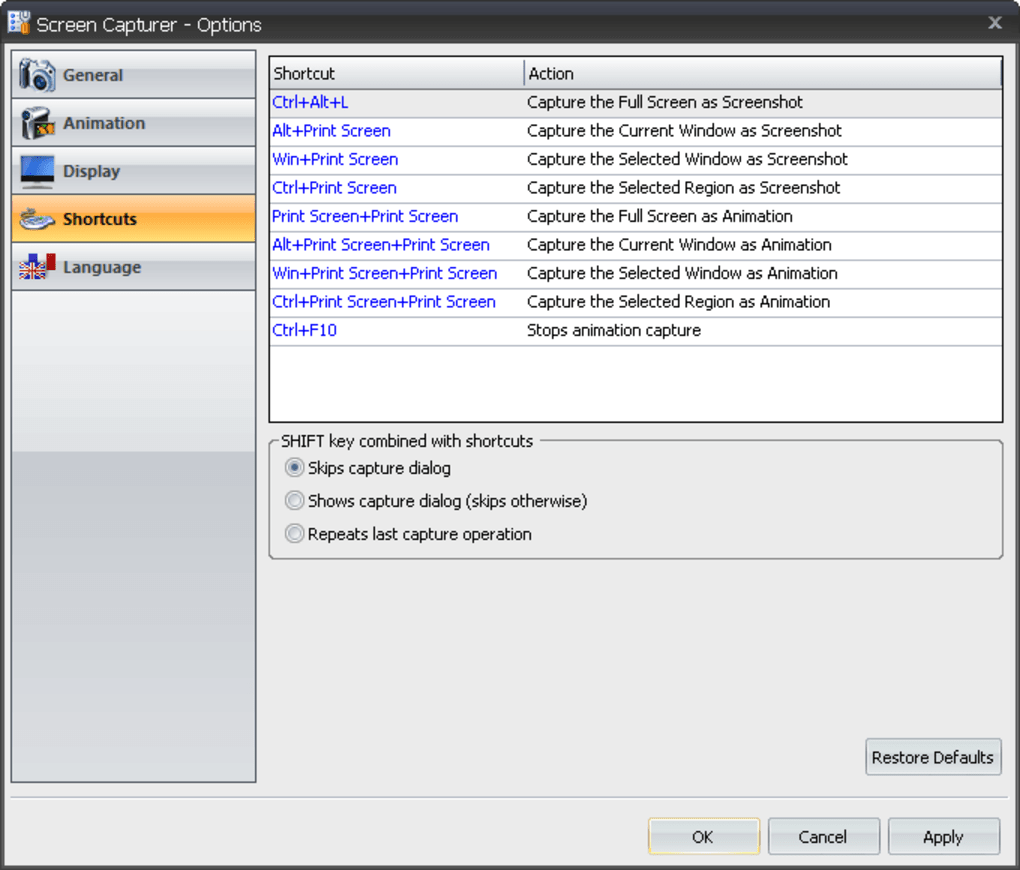
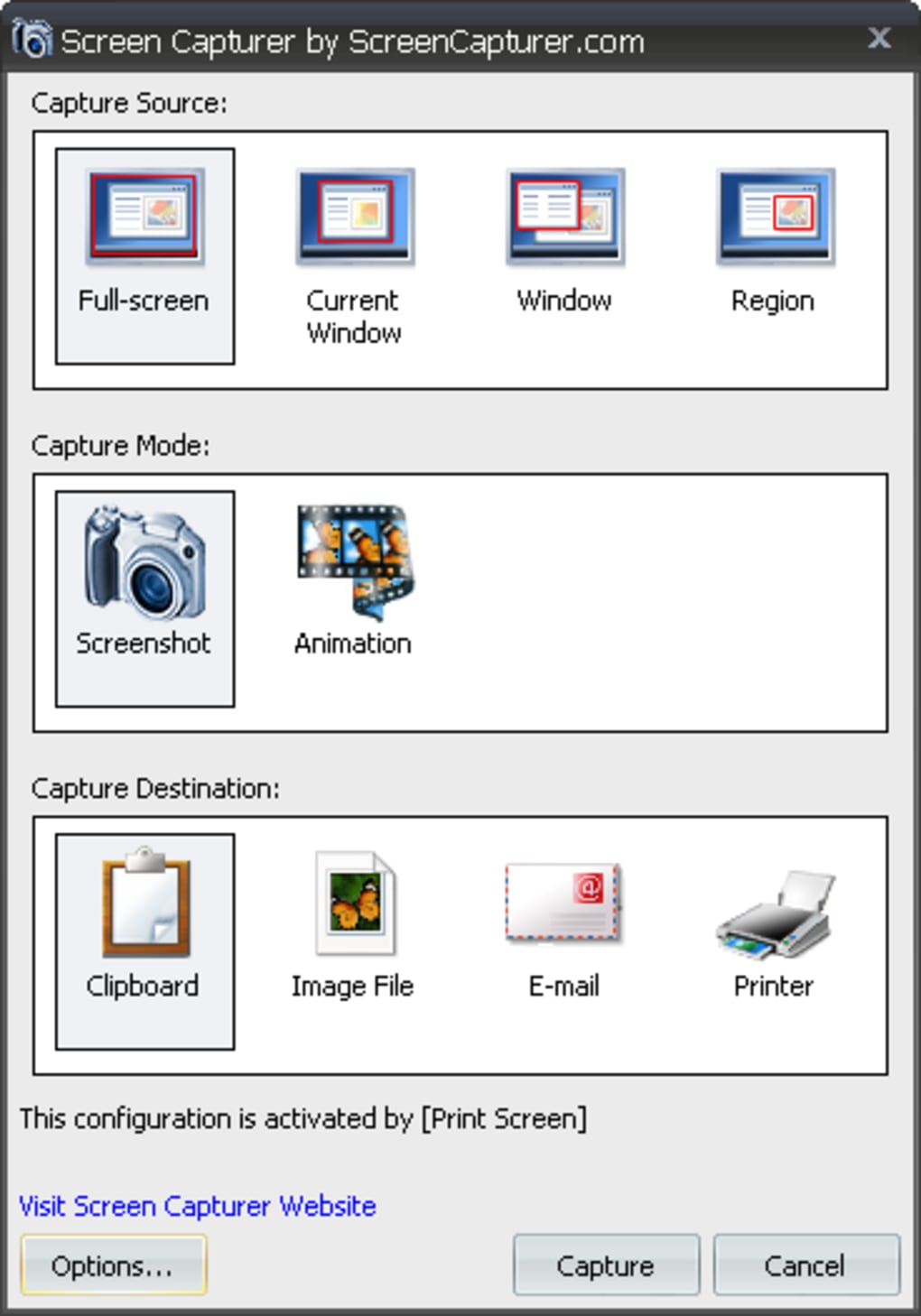
Free Screen Capturer stands out in the crowded field of screen capture tools thanks to its intuitive interface and robust functionality. One of its most praised features is the ability to capture screenshots in three distinct modes: full-screen, active window, or custom region. This flexibility ensures you can focus on the exact content you need—whether it’s an entire webpage, a specific application window, or a highlighted section of your desktop. Each captured image can be saved in multiple formats, including high-quality PNG for transparency, JPG for web use, and GIF for animated snippets. For users who need immediate sharing, the tool supports direct sending to the clipboard, printer, or default email client—ideal for quick documentation or collaboration.
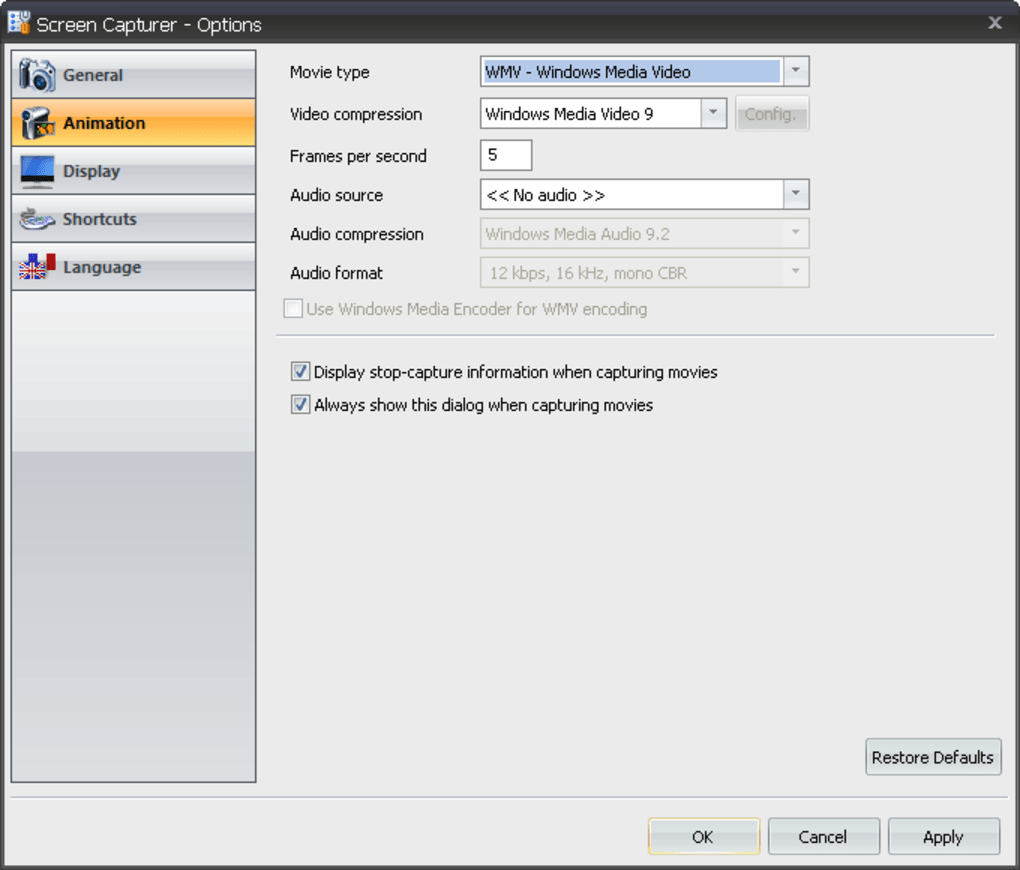
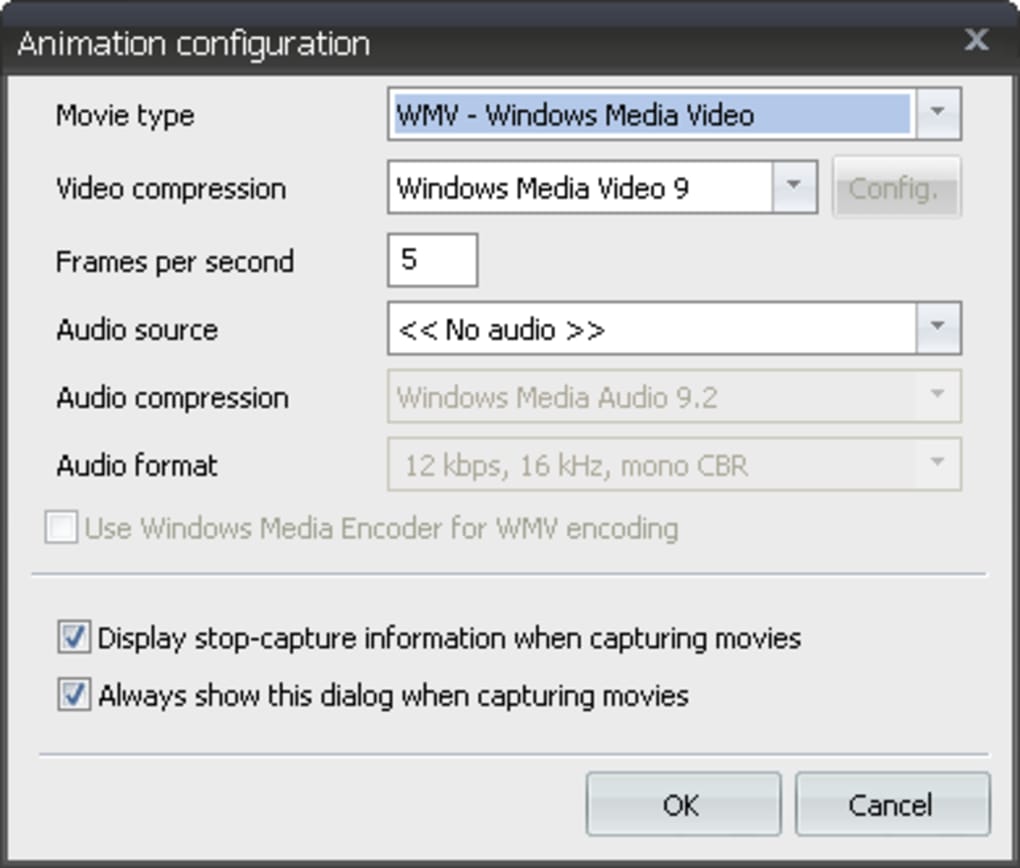
But what truly elevates Free Screen Capturer is its built-in video recording capability. Unlike many free tools that limit you to static images, this software allows you to record short screencasts in AVI or WMV format. You can adjust frame rates to balance quality and file size, and crucially, it supports audio capture—perfect for creating tutorial videos or explaining software features in real time. The recording process is simple: select your area, choose your format, and hit record. No need for third-party tools or complex configurations. Additionally, the software is lightweight and doesn’t consume excessive system resources, making it suitable for older machines or devices with limited RAM.
Another standout feature is its cross-platform compatibility. Whether you're using Windows 10/11, macOS, Android, or iOS, Free Screen Capturer delivers consistent performance. This makes it a versatile choice for teams working across different devices. The interface is clean and distraction-free, ensuring you can capture content without interruption. With no ads, no trial limits, and no hidden costs, this free tool is perfect for both personal and professional use. For anyone needing a reliable, secure, and easy-to-use screen capture solution, Free Screen Capturer delivers on every front.
How to Install and Use Free Screen Capturer
Getting started with Free Screen Capturer is a breeze, regardless of your operating system. Begin by visiting the official download page and selecting the version that matches your device—Windows, Mac, Android, or iOS. The installer is lightweight, typically under 10MB, and completes in seconds. Once installed, launch the application, and you’ll be greeted with a minimalist interface that places all essential tools within easy reach.
To take a screenshot, click on one of the three capture modes: Full Screen, Active Window, or Select Area. For full-screen capture, simply click the corresponding button and the entire screen will be recorded instantly. If you only need a specific window, choose “Active Window” and the tool will detect the currently focused application. For more precision, use the “Select Area” option—drag your cursor to define the exact region you want to capture. After capturing, you can preview the image, adjust settings like compression or format, and then save it to your desired location. The tool supports drag-and-drop saving, so you can quickly move files to your desktop, documents folder, or cloud storage.
For video recording, click the “Record” button and choose your preferred format—AVI or WMV. You can also enable audio capture from your microphone or system sound, which is ideal for narrated tutorials. Set your frame rate (default is 15 FPS, but you can go up to 30 FPS for smoother playback), and click “Start.” The recording will begin immediately, with a small overlay showing the recording status. When done, click “Stop,” and the video will be saved automatically. The entire process takes less than a minute from start to finish. No technical knowledge required. Whether you're documenting a bug, creating a presentation, or teaching online, Free Screen Capturer simplifies every step.
Compatibility & System Requirements
Free Screen Capturer is designed for broad accessibility, supporting all major operating systems: Windows 7 and later, macOS 10.12 or newer, Android 5.0+, and iOS 11+. This ensures that whether you're using a desktop, laptop, tablet, or smartphone, you can capture screen content without compatibility issues. The software is optimized for both 32-bit and 64-bit systems, making it suitable for older machines as well as modern high-performance devices.
System requirements are minimal, contributing to its lightweight nature. On Windows and Mac, you’ll need at least 512MB of RAM and 50MB of free disk space. For Android and iOS, the app requires a device with a stable internet connection for download and access to camera and microphone permissions for video recording. The software runs efficiently even on devices with lower specs, thanks to its optimized codebase and low CPU usage. It doesn’t require admin rights to install, which is a major plus for users in restricted environments like schools or offices.
One of the most impressive aspects of Free Screen Capturer is its cross-device synchronization. While it doesn’t offer cloud storage integration, you can easily transfer captured files between devices using USB drives, email, or cloud services like Google Drive or Dropbox. This makes it ideal for users who work across multiple platforms. Additionally, the tool respects user privacy—no data is uploaded to servers without explicit permission, ensuring your screen captures remain secure and private.
Pros and Cons of Free Screen Capturer
- Pros:
- Free to download and use with no hidden fees or ads
- Supports multiple capture modes: full screen, active window, and custom area
- High-quality output in PNG, JPG, BMP, GIF, and TIFF formats
- Integrated video recording with audio support (AVI and WMV only)
- Lightweight and fast—minimal impact on system performance
- Available for Windows, Mac, Android, and iOS
- Direct sharing options: clipboard, printer, email
- Simple, intuitive interface suitable for beginners
- Cons:
- Limited video formats—only AVI and WMV supported
- No built-in video editor (requires third-party software for trimming)
- No cloud sync or auto-backup feature
- Advanced settings are not easily accessible for power users
- Occasional lag during high-resolution recording on older devices
Frequently Asked Questions (FAQ)
- Is Free Screen Capturer really free?
-
Yes, Free Screen Capturer is completely free to download and use. There are no trial periods, subscription fees, or hidden charges. The software is ad-free and does not collect user data.
- Can I record audio while capturing video?
-
Yes, Free Screen Capturer supports audio recording from your microphone or system sound. This feature is perfect for creating narrated tutorials or explaining software steps in real time.
- What file formats are supported for screenshots?
-
Free Screen Capturer allows you to save screenshots in BMP, JPG, PNG, GIF, and TIFF formats—ideal for web use, printing, or sharing on social media.
- Does it work on Mac and mobile devices?
-
Yes, Free Screen Capturer is available for macOS 10.12+, Windows 7+, Android 5.0+, and iOS 11+. It offers consistent functionality across all platforms.
- Can I edit captured videos within the app?
-
Currently, Free Screen Capturer does not include a built-in video editor. However, you can export your recordings and edit them using free tools like DaVinci Resolve or iMovie.
Final Verdict: Why You Should Download Free Screen Capturer Today
If you're searching for a reliable, secure, and free screen capturing tool that works across Windows, Mac, Android, and iOS, Free Screen Capturer is an excellent choice. It combines the simplicity of a screenshot utility with the power of short video recording, making it ideal for bloggers, educators, remote workers, and content creators. Its minimal system requirements, cross-platform support, and user-friendly interface ensure a smooth experience for everyone—from beginners to intermediate users.
While it lacks a built-in video editor and supports only AVI and WMV for video output, these limitations are minor compared to the tool’s overall value. The fact that it’s completely free, ad-free, and secure makes it stand out in a market flooded with freemium alternatives. Whether you need to document a bug, create a tutorial, or share a quick demo, Free Screen Capturer delivers fast, high-quality results without the hassle.
Don’t wait—download Free Screen Capturer now and take control of your screen capture workflow. It’s the lightweight, powerful, and trustworthy tool you’ve been looking for.
Guides & Tutorials for Free Screen Capturer
How to install Free Screen Capturer
- Click the Preview / Download button above.
- Once redirected, accept the terms and click Install.
- Wait for the Free Screen Capturer download to finish on your device.
How to use Free Screen Capturer
This software is primarily used for its core features described above. Open the app after installation to explore its capabilities.
User Reviews for Free Screen Capturer 0
No reviews found





